
Install and Activate Microsoft Office
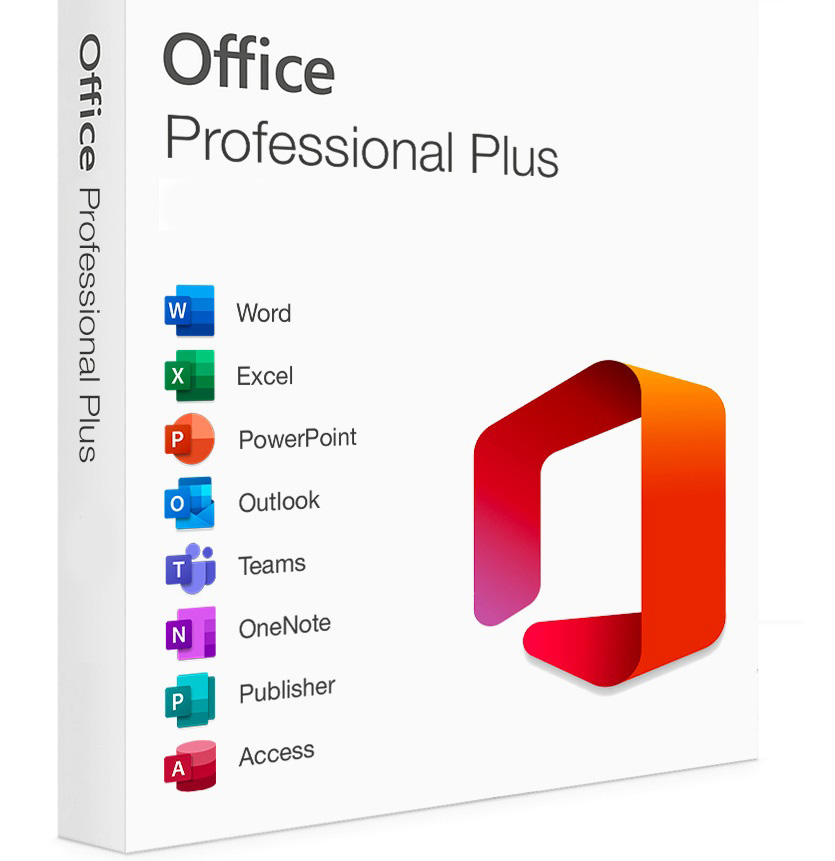
Step 1: Download and Install Office
You can install Microsoft Office using either of the two methods below.
Option 1: Direct Download
Select your Office version and click download:
Option 2: Download via Microsoft (setup.office.com)
- Go to setup.office.com
- Sign in with your Microsoft account
- Enter your product key when prompted
- Follow the instructions to download and install Office
Installation Instructions (for direct downloads):
- Download the
.imgor.isofile - Double-click the file to mount it
(If double-click doesn’t work, right-click and choose Mount) - Double-click
setup.exeto begin installation - Once installed, open Word or Excel
Step 2: Internet Activation
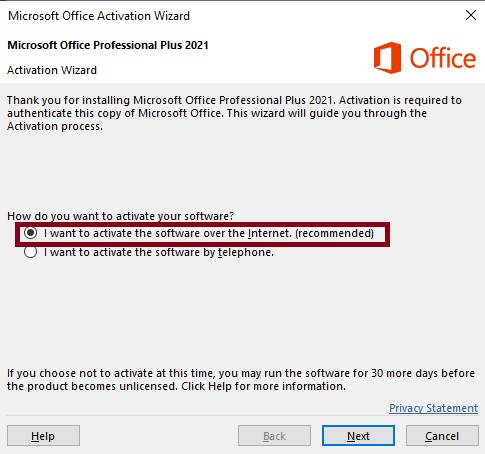
When prompted, enter your product key. Wait while Office attempts to activate online.
✅ If activation succeeds, you're all set!
❌ If it fails, proceed to Step 3.
❌ If it fails, proceed to Step 3.
Step 3: Telephone Activation
- Open Word or Excel
- Go to File → Account → Change Product Key
- Enter your product key again (if needed)
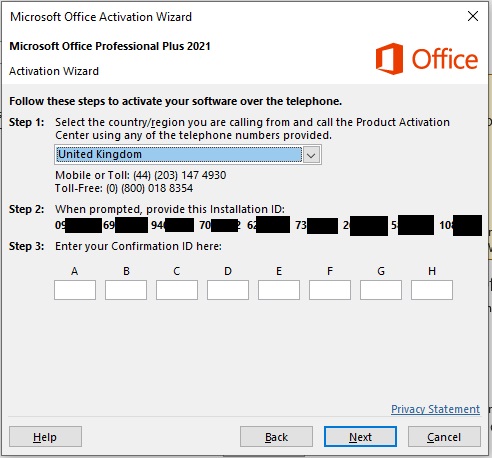
- Select Activate by telephone
- Choose your country and call the number shown
- You’ll receive an Installation ID (9 blocks of numbers)
- Important: You may be given the option to receive a link via SMS or a website — choose this for faster activation.
You’ll get a link likehttps://visualsupport.microsoft.com/xxxxxx
Final Step
Enter the Confirmation ID back into the activation window to complete the process.
Your Office will now be fully activated and licensed for lifetime use on this device.
This key is for one PC only. If you reinstall Windows or move to another computer, phone activation may be required again.
